<?xml version="1.0" encoding="utf-8"?><feed xmlns="http://www.w3.org/2005/Atom" ><generator uri="https://jekyllrb.com/" version="3.10.0">Jekyll</generator><link href="https://jianli03.github.io/feed.xml" rel="self" type="application/atom+xml" /><link href="https://jianli03.github.io/" rel="alternate" type="text/html" /><updated>2025-04-30T10:00:43+00:00</updated><id>https://jianli03.github.io/feed.xml</id><title type="html">houhougo.com</title><subtitle>My coding life.</subtitle><author><name>James Li</name><email>jianli03@gmail.com</email></author><entry><title type="html">Use Bower To Manage Front-End Dependencies</title><link href="https://jianli03.github.io/nodejs/use-bower-to-manage-dependencies/" rel="alternate" type="text/html" title="Use Bower To Manage Front-End Dependencies" /><published>2016-08-30T00:00:00+00:00</published><updated>2016-08-30T00:00:00+00:00</updated><id>https://jianli03.github.io/nodejs/use-bower-to-manage-dependencies</id><content type="html" xml:base="https://jianli03.github.io/nodejs/use-bower-to-manage-dependencies/"><![CDATA[<h2 id="what-is-bower">What is Bower</h2>
<p><img src="/assets/images/bower.jpg" alt="image-right" class="align-right" /><br />
Bower — a package manager for the web.</p>

<blockquote>
  <p>“Web sites are made of lots of things — frameworks, libraries, assets, and
utilities. Bower manages all these things for you.”</p>
</blockquote>

<h2 id="why-use-bower">Why Use Bower</h2>
<p>Recently I have been working on some website development projects.
I found that it was time consuming and error prone to manually manage third party packages like jQuery, Bootstrap, Moderniz, which generally means googling and downlaoding those packages. In the further, repeating process all over again might be needed for updating. I was pretty sure there is a way similar to how we manage Java dependency using Maven or Grandle. Therefore, I leart and used Bower to manage components of the front end. Bower is very handy to install the right versions of the packages you need and manage their dependencies.</p>

<p>To intall a package would like this:
    $ bower install jquery</p>

<p>To keep a package up to date would like this:
    $ bower update jquery</p>

<p>How simple it is! So let us go through some examples to learn how to handle third party packages matters using a few bower commands.
By the way, Node’s NPM is an altertive you can choose to achieve the simplicity.</p>

<h3 id="install-bower">Install Bower</h3>
<div class="language-plaintext highlighter-rouge"><div class="highlight"><pre class="highlight"><code>$ npm install -g bower 	// -g means globel   
$ bower --version 		// check if the installation is ok  
1.7.19  				// version number   
</code></pre></div></div>

<h3 id="getting-started">Getting Started</h3>

<h5 id="create-a-project">Create a Project.</h5>

<div class="language-plaintext highlighter-rouge"><div class="highlight"><pre class="highlight"><code>$ mkdir bower-in-action
$ cd bower-in-action
</code></pre></div></div>

<h5 id="initialize-the-project">Initialize the Project.</h5>
<p>Bower keeps track of dependency using a file named “package.json”  that contain information about a project and a list of packages it uses. create this file by intializae a project.</p>

<div class="language-plaintext highlighter-rouge"><div class="highlight"><pre class="highlight"><code>$ bower init   
</code></pre></div></div>

<p>You will be answering a list of questions and answers will form your “bower.json” file as following:</p>

<div class="language-plaintext highlighter-rouge"><div class="highlight"><pre class="highlight"><code>{    
  "name": "bb_boot",  
  "version": "0.0.1",  
  "authors": [  
    "james &lt;james@qq.com&gt;"  
  ],  
  "moduleType": [  
    "amd"  
  ],  
  "license": "MIT",  
  "ignore": [  
    "**/.*",  
    "node_modules",  
    "bower_components",  
    "js/lib",  
    "test",  
    "tests"  
  ],
  "dependencies": {  
  }
}
</code></pre></div></div>

<h5 id="install-jquery-and-bootstrap-packages">Install jQuery and Bootstrap packages</h5>
<div class="language-plaintext highlighter-rouge"><div class="highlight"><pre class="highlight"><code>$ bower install jquery
$ bower install bootstrap
</code></pre></div></div>

<p>A directory named ower_components is created after the installation.The package files of jquery and bootstrap are downloaded and stored in this folder.</p>

<h5 id="search-a-package">Search a package</h5>
<p>Use this online <a href="http://bower.io/search/">Search Bower packages</a><br />
or</p>

<div class="language-plaintext highlighter-rouge"><div class="highlight"><pre class="highlight"><code>$ bower search bootstrap  
</code></pre></div></div>

<p>Searching on the Bower’s page is more straightforward.</p>

<div class="language-plaintext highlighter-rouge"><div class="highlight"><pre class="highlight"><code>$ bower uninstall jquery
</code></pre></div></div>

<h5 id="install-with-save">Install with Save</h5>

<div class="language-plaintext highlighter-rouge"><div class="highlight"><pre class="highlight"><code>$ bower install jquery --save  
</code></pre></div></div>

<p>bower downloads the latest jquery to your js/lib folder
–save write the configures to bower.json：</p>

<div class="language-plaintext highlighter-rouge"><div class="highlight"><pre class="highlight"><code>"dependencies": {  
  "jquery": "~2.1.4"  
}  
</code></pre></div></div>

<h5 id="pakage-info">Pakage Info</h5>
<p>if we would like to find the package version:</p>

<div class="language-plaintext highlighter-rouge"><div class="highlight"><pre class="highlight"><code>$ bower info jquery    
</code></pre></div></div>

<p>You can down grade the version by write version number into this bower.json like following:</p>

<div class="language-plaintext highlighter-rouge"><div class="highlight"><pre class="highlight"><code>"dependencies": {
   "jquery": "~1.11.3"
} and than  

$ bower update  
</code></pre></div></div>

<p>after that, jquery version has been changed to 1.11.3</p>

<h5 id="uninstall-jquery">Uninstall jQuery</h5>
<div class="language-plaintext highlighter-rouge"><div class="highlight"><pre class="highlight"><code>$ bower uninstall jquery

{  
  "name": "jquery-in-action",  
  "version": "0.0.0",  
  "authors": [  
    "james &lt;james@qq.com&gt;"  
  ],  
  "description": "test bower using jquery &amp; bootstrap",  
  "keywords": [  
    "jquery",  
    "bootstrap"  
  ],  
  "license": "MIT",  
  "dependencies": {  
    "bootstrap": "latest",  
    "font-awesome": "latest",  
    "animate.css": "latest",  
    "angular": "latest"      
  },
  "devDependencies": {
    "angular": "~1.3.8"
  }
}
</code></pre></div></div>

<p>To be aware there are to kinds of Dependencies. One is named “dependencies”  and anther is named “devDependencies”. They are repereneting dependencies in Production Env and Development Env respectively. Those dependencies can be saved respectively like following:</p>

<div class="language-plaintext highlighter-rouge"><div class="highlight"><pre class="highlight"><code>  $ bower install jquery --save    // add to devDependencies  
  $ bower install angular --save-dev		//add to devDependencies  
</code></pre></div></div>

<h3 id="use-bower">Use Bower</h3>

<p>In the following example we are add dependencies into a webpage managed by bower：</p>

<div class="language-plaintext highlighter-rouge"><div class="highlight"><pre class="highlight"><code>&lt;!-- index.html --&gt;  
&lt;!doctype&gt;  
&lt;head&gt;
  &lt;link rel="stylesheet" href="libs/bootstrap/dist/css/bootstrap.min.css"&gt;  
  &lt;link rel="stylesheet" href="libs/font-awesome/css/font-awesome.min.css"&gt;  
  &lt;link rel="stylesheet" href="libs/animate.css/animate.min.css"&gt;  

  &lt;script src="libs/jquery/jquery.min.js"&gt;&lt;/script&gt;  
  &lt;script src="libs/bootstrap/dist/js/bootstrap.min.js"&gt;&lt;/script&gt;  
  &lt;script src="libs/angular/angular.min.js"&gt;&lt;/script&gt;    
&lt;/head&gt;    
</code></pre></div></div>

<h4 id="bowerrc-file">.bowerrc file</h4>

<p>.bowerrc is a JSON file for Bower configuration. It can be created after the root directory is created for the project.
In this file we can spefiy bower packages installation directory, registry server info：</p>

<div class="language-plaintext highlighter-rouge"><div class="highlight"><pre class="highlight"><code>{  
  "directory": "bower_components",  
  "analytics": false,  
  "timeout": 120000,  
  "registry": {  
    "search": [  
      "http://localhost:8000",  
      "https://bower.herokuapp.com"  
    ]  
  }  
}  
</code></pre></div></div>

<p>To sum up, Bower makes it faster and easier for you to manage third party packages.</p>

<p><a href="/index.html">Go back</a></p>]]></content><author><name>James Li</name><email>jianli03@gmail.com</email></author><category term="nodejs" /><category term="bower" /><category term="dependencies" /><summary type="html"><![CDATA[Web sites are made of lots of things — frameworks, libraries, assets, and utilities. Bower manages all these things for you.]]></summary></entry><entry><title type="html">Use LOG4JS for Nodejs Logging</title><link href="https://jianli03.github.io/nodejs/nodejs-log-managment-with-log4js/" rel="alternate" type="text/html" title="Use LOG4JS for Nodejs Logging" /><published>2016-08-10T00:00:00+00:00</published><updated>2016-08-10T00:00:00+00:00</updated><id>https://jianli03.github.io/nodejs/nodejs-log-managment-with-log4js</id><content type="html" xml:base="https://jianli03.github.io/nodejs/nodejs-log-managment-with-log4js/"><![CDATA[<p>LOG4j is a well known logging framework used in Java. Coming with the same logging style with LOG4J, LOG4JS is easy for those who have Java experience with LOG4J to get started with.</p>

<h2 id="1-default-console-output">1 Default Console Output</h2>
<p>When we use express framework and start a nodejs app, console will output some message like <br />
    “GET /xxx…/xxx 200 30ms”.</p>

<p>We can hard coding with console.log() function to output some message as below:</p>

<div class="language-plaintext highlighter-rouge"><div class="highlight"><pre class="highlight"><code>  console.log("This is an index page!");   
</code></pre></div></div>

<p>The output in the console are good enough in dev environment, but not for production. In production it is more likely that you want save those output into a file and debug with leveling. Express framework does not provide
 log functionality, so we introduce log4js package to accomplish that.</p>

<h2 id="2-install-log4js">2 Install Log4js</h2>
<div class="language-plaintext highlighter-rouge"><div class="highlight"><pre class="highlight"><code>$ npm install log4js  
</code></pre></div></div>

<h2 id="3-configuration-in-appjs">3 Configuration in app.js</h2>

<figure class="highlight"><pre><code class="language-javascript" data-lang="javascript"><table class="rouge-table"><tbody><tr><td class="gutter gl"><pre class="lineno">1
2
3
4
5
6
7
8
9
10
11
12
13
14
15
16
17
18
19
20
21
</pre></td><td class="code"><pre>     <span class="kd">var</span> <span class="nx">log4js</span> <span class="o">=</span> <span class="nx">require</span><span class="p">(</span><span class="dl">'</span><span class="s1">log4js</span><span class="dl">'</span><span class="p">);</span>
     <span class="nx">log4js</span><span class="p">.</span><span class="nx">configure</span><span class="p">({</span>
       <span class="na">appenders</span><span class="p">:</span> <span class="p">[</span>
         <span class="p">{</span> <span class="na">type</span><span class="p">:</span> <span class="dl">'</span><span class="s1">console</span><span class="dl">'</span> <span class="p">},</span> <span class="c1">// console output</span>
         <span class="p">{</span>
           <span class="na">type</span><span class="p">:</span> <span class="dl">'</span><span class="s1">file</span><span class="dl">'</span><span class="p">,</span> <span class="c1">// file output</span>
           <span class="na">filename</span><span class="p">:</span> <span class="dl">'</span><span class="s1">logs/access.log</span><span class="dl">'</span><span class="p">,</span>
           <span class="na">maxLogSize</span><span class="p">:</span> <span class="mi">1024</span><span class="p">,</span>
           <span class="na">backups</span><span class="p">:</span><span class="mi">3</span><span class="p">,</span>
           <span class="na">category</span><span class="p">:</span> <span class="dl">'</span><span class="s1">normal</span><span class="dl">'</span>
         <span class="p">}</span>
       <span class="p">]</span>
     <span class="p">});</span>

     <span class="kd">var</span> <span class="nx">logger</span> <span class="o">=</span> <span class="nx">log4js</span><span class="p">.</span><span class="nx">getLogger</span><span class="p">(</span><span class="dl">'</span><span class="s1">normal</span><span class="dl">'</span><span class="p">);</span>
     <span class="nx">logger</span><span class="p">.</span><span class="nx">setLevel</span><span class="p">(</span><span class="dl">'</span><span class="s1">INFO</span><span class="dl">'</span><span class="p">);</span>
     <span class="p">...</span>
     <span class="c1">//app.use(...)</span>
     <span class="c1">//app.use(...)</span>
     <span class="nx">app</span><span class="p">.</span><span class="nx">use</span><span class="p">(</span><span class="nx">log4js</span><span class="p">.</span><span class="nx">connectLogger</span><span class="p">(</span><span class="nx">logger</span><span class="p">,</span> <span class="p">{</span><span class="na">level</span><span class="p">:</span><span class="nx">log4js</span><span class="p">.</span><span class="nx">levels</span><span class="p">.</span><span class="nx">INFO</span><span class="p">}));</span>
    
</pre></td></tr></tbody></table></code></pre></figure>

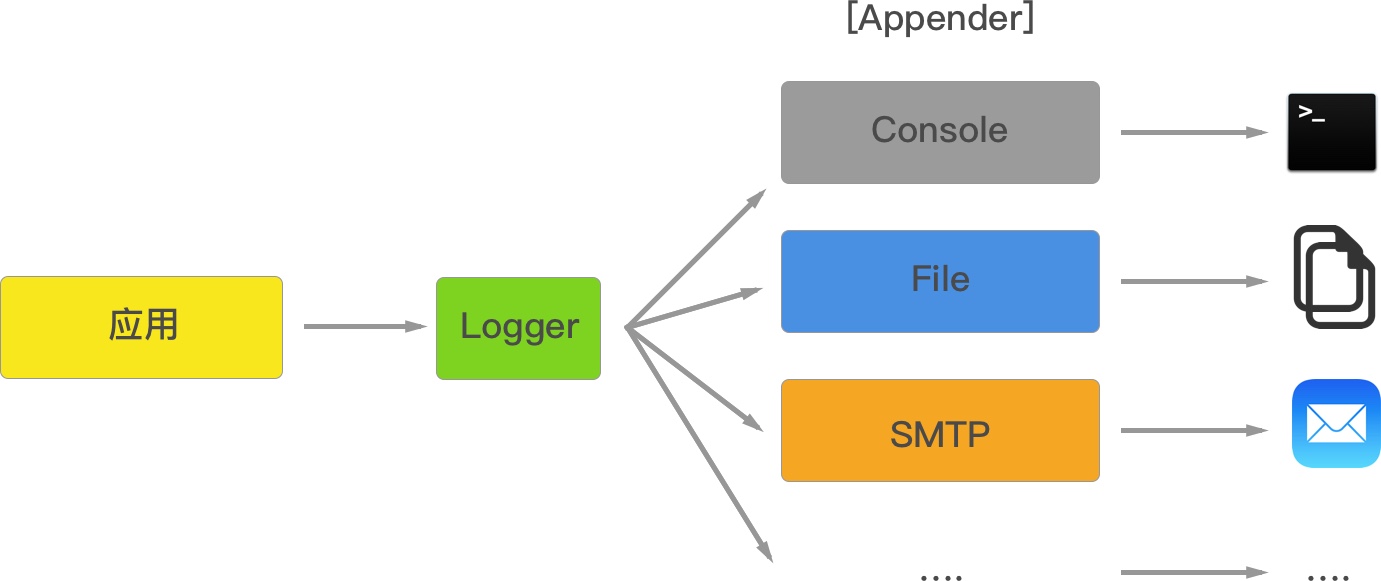
<h4 id="in-this-example-we-defined-two-types-of-output-in-appenders-one-for-the-console-another-for-the-file-there-are-more-we-can-use-to-output-logs--datefile">In this example, we defined two types of output in “appenders”: one for the console, another for the file. There are more we can use to output logs : DateFile,</h4>
<div class="language-plaintext highlighter-rouge"><div class="highlight"><pre class="highlight"><code>                                       SMTP, levelFilter and other appender.
</code></pre></div></div>

<h4 id="filename-specifies-the-path-of-the-log-file-when-the-file-exceeds-the-maxlogsize-a-new-file-will-be-generated">“filename” specifies the path of the log file, when the file exceeds the maxLogSize, a new file will be generated.</h4>

<h4 id="in-log4jsgetloggernormal-normal-here-is-a-category-you-can-get-a-logger-instance-by-define-different-categories-according-the-node-package-therefore-you-know-the-source-of-a-log">In log4js.getLogger(‘normal’); ‘normal’ here is a category. You can get a logger instance by define different categories according the node package, therefore you know the source of a log.</h4>
<p><img src="/assets/images/appender.jpg" alt="image" /></p>

<h4 id="to-be-aware-logs-folder-has-to-be-created-manually">To be aware, ”logs” folder has to be created manually.</h4>

<h4 id="9-levels-of-log">9 levels of log:</h4>
<div class="language-plaintext highlighter-rouge"><div class="highlight"><pre class="highlight"><code>{
  ALL: new Level(Number.MIN_VALUE, "ALL"),
  TRACE: new Level(5000, "TRACE"),
  DEBUG: new Level(10000, "DEBUG"),
  INFO: new Level(20000, "INFO"),
  WARN: new Level(30000, "WARN"),
  ERROR: new Level(40000, "ERROR"),
  FATAL: new Level(50000, "FATAL"),
  MARK: new Level(9007199254740992, "MARK"), // 2^53
  OFF: new Level(Number.MAX_VALUE, "OFF")
} All and OFF are not used in applications, others are functions we can invoke.
</code></pre></div></div>

<p>In production, we probebly care only about info and error and fatal level message. When the output level is set to INFO, trace and debug message will not be output, therefore reduces the amount of size for records.</p>

<h2 id="4-configure-for-projects">4 Configure for projects</h2>
<p>In previous section, we go through integration log4js with express. Normally we want to configure our log according to our project specific requirements other than use the default configuration.</p>

<h3 id="1-replace-consolelog">1. Replace console.log()</h3>
<p>add replaceConsole, let all messages go into a log file.</p>

<div class="language-plaintext highlighter-rouge"><div class="highlight"><pre class="highlight"><code>vi app.js
var log4js = require('log4js');
log4js.configure({
  appenders: [
    { type: 'console' },{
      type: 'file',
      filename: 'logs/access.log',
      maxLogSize: 1024,
      backups:4,
      category: 'normal'
    }
  ],
  replaceConsole: true  //this sends console output into the log output file
});
</code></pre></div></div>

<h3 id="2-format">2. Format</h3>
<div class="language-plaintext highlighter-rouge"><div class="highlight"><pre class="highlight"><code> app.use(log4js.connectLogger(logger, {level: level:log4js.levels.INFO, format:':method :url'}));    This makes the output short and concise.
</code></pre></div></div>

<h3 id="3-set-level-to-auto">3. Set level to auto</h3>

<h4 id="log-level-rules">Log level rules：</h4>
<p>http responses 3xx, level = WARN
 http responses 4xx &amp; 5xx, level = ERROR
 else, level = INFO</p>

<p>set level to auto <br />
     app.use(log4js.connectLogger(logger, {level: ‘auto’, format:’:method :url’}));</p>

<h3 id="4-define-a-loggerjs-as-an-api">4. Define a logger.js as an API</h3>
<p>In previous example, all configuration is in the app.js, which makes it unavailable for routes. Now let us export them out and make it a separated file to for other js file.</p>

<h4 id="code-of-loggerjs">Code of logger.js</h4>
<div class="language-plaintext highlighter-rouge"><div class="highlight"><pre class="highlight"><code>  var log4js = require("log4js");
  log4js.configure({
      appenders:[
          {
              type:"console"// for console output
          },
          {
              type:"file",// for file output
              filename:'logs/access.log',
              maxLogSize:1024,  
              backups:3,
              category:'normal'
          }
      ],
      replaceConsole:true    
  });
  exports.logger = function(category,level){
      var logger = log4js.getLogger(category);
      logger.setLevel(level);
      return logger;
  }

  exports.connectLogger = function(logger,options){
      return log4js.connectLogger(logger,options);
  }
</code></pre></div></div>

<h4 id="use-loggerjs-in-indexjs">Use logger.js in index.js</h4>

<div class="language-plaintext highlighter-rouge"><div class="highlight"><pre class="highlight"><code>var express = require('express');
var router = express.Router();

var log4js = require('../logger')
var logger = log4js.logger('normal','INFO');

/* GET home page. */
router.get('/', function(req, res, next) {
  console.log("This is an index page!");
  logger.info("This is an index page! -- log4js");
  logger.trace("Entering cheese testing");
  logger.debug("Got cheese.");
  logger.warn("Cheese is quite smelly.");
  logger.error("Cheese is too ripe!");
  logger.fatal("Cheese was breeding ground for listeria.");

  res.render('index', { title: 'Express' });
});
module.exports = router;
</code></pre></div></div>

<p>So far we are all set for logging in a production environment.</p>

<p><a href="/index.html">Go back</a></p>]]></content><author><name>James Li</name><email>jianli03@gmail.com</email></author><category term="nodejs" /><category term="logging" /><category term="log4js" /><summary type="html"><![CDATA[LOG4j is a well known logging framework used in Java. Coming with the same logging style with LOG4J, LOG4JS is easy for those who have Java experience with LOG4J to get started with.]]></summary></entry><entry><title type="html">Jekyll Basics</title><link href="https://jianli03.github.io/jekyll-basics/" rel="alternate" type="text/html" title="Jekyll Basics" /><published>2016-08-09T00:00:00+00:00</published><updated>2016-08-09T00:00:00+00:00</updated><id>https://jianli03.github.io/jekyll-basics</id><content type="html" xml:base="https://jianli03.github.io/jekyll-basics/"><![CDATA[<p>这几天终于弄明白了怎么在Github的pages建立个人博客。 因为好高骛远，使用了mmistake的模版项目，fork下来一大堆东西，不知道怎么入手。
GitHub pages为了提供对HTML内容的支持，选择了Jekyll作为模板系统。
Jekyll是一个强大的静态模板系统，所以先搞清Jekyll怎么工作很有必要。</p>

<h3 id="其实jekyll本身的结构并不复杂-如下">其实Jekyll本身的结构并不复杂， 如下：</h3>
<ul>
  <li>_config.yml</li>
  <li>_includes</li>
  <li>_layouts</li>
  <li>—–default.html</li>
  <li>—–post.html</li>
  <li>_posts</li>
  <li>—–2007-10-29-why-every-programmer-should-play-nethack.textile</li>
  <li>—–2009-04-26-barcamp-boston-4-roundup.textile</li>
  <li>_site</li>
  <li>—–index.html</li>
</ul>

<h3 id="简单介绍一下他们的作用">简单介绍一下他们的作用：</h3>

<h5 id="_configyml">_config.yml</h5>
<p>配置文件，参考<a href="https://mmistakes.github.io/minimal-mistakes/docs/configuration/">这里</a>进行设置，设置之后就不用关心了。</p>

<h5 id="_includes">_includes</h5>
<p>存放一些小的可复用的模块，比如header footer 每个页面都会引入的，方便通过{ % include file.ext % }（去掉前两个{中或者{与%中的空格，下同）灵活的调用。这条命令会调用_includes/file.ext文件。</p>

<h5 id="_layouts">_layouts</h5>
<p>这是模板文件存放的位置。模板通过YAML front matter来定义， 设置的话参考<a href="https://mmistakes.github.io/minimal-mistakes/dolayouts/">这里</a>。</p>

<h5 id="_posts">_posts</h5>
<p>看名字就知道是你的博客正文存放的文件夹。命名规定，必须是YYYY-MM-DD-artical-title.MARKUP这样的形式，MARKUP是你所使用标记语言的文件后缀名，一般直接就是md, 也可以根据_config.yml中设定的链接规则灵活调整。 文章的日期和标记语言后缀与文章的标题的独立的。</p>

<h5 id="_site">_site</h5>
<p>这个是Jekyll生成的最终的文档，不用去关心。有高人建议放到.gitignore文件中忽略它。</p>

<p><a href="/index.html">Go back</a></p>]]></content><author><name>James Li</name><email>jianli03@gmail.com</email></author><summary type="html"><![CDATA[]]></summary></entry><entry><title type="html">First Blog On</title><link href="https://jianli03.github.io/first-blog-on/" rel="alternate" type="text/html" title="First Blog On" /><published>2016-08-07T00:00:00+00:00</published><updated>2016-08-07T00:00:00+00:00</updated><id>https://jianli03.github.io/first-blog-on</id><content type="html" xml:base="https://jianli03.github.io/first-blog-on/"><![CDATA[]]></content><author><name>James Li</name><email>jianli03@gmail.com</email></author><summary type="html"><![CDATA[]]></summary></entry></feed>